Need advice? Let's talk.
Get straightforward guidance from your broadcasting partner. Schedule a call to chat with the team about your radio station.
Book DemoIntroducing Playout: Browser-Based Live Assist Feature For Creating Live Radio Shows
Create professional and slick live radio shows from your browser with Playout, our new live-assist feature for Windows and Mac.


Most broadcasters would agree, the funnest part of the job is going live. There’s the anticipation when you play your show’s opener, the buzz of sharing your music finds and the thrill of talking to your audience. And it’s made even better when you absolutely ace your latest show. The transitions are smooth, your voice is nice and clear, your jingles both timely and polished.
We can’t bottle up that feeling, but we can make it easier to get that feeling. That’s why we’ve created Playout: our brand new, browser-based, live-assist feature, bringing all the essential tools for your live show onto one screen.
And yes, Playout is available on both Mac and Windows!
We’ll dive in what Playout can do, but first let’s take a deeper look at what it is and who can access it.
What is Playout?
Playout is a live-assist feature for you to create slick live radio shows with. It brings together the all important tools - like a cart wall and a segue editor - into one screen in your browser, making it easy to finesse your live shows.
Here's a breakdown of what Playout offers...
Playout's Features

Microphone
Whether you're softly spoken or have a voice that carries, ensure you're heard clearly and without distortion. Select your microphone and monitor levels with the real-time VU meter. Set the level you want the music to be dipped to when on the mic. And then enable talk-over mode to ensure automatic music ducking.
Players
When music is such an integral part of your show, you want to control it easily. At a glance, see what’s currently playing and what’s next with the two-deck player view. And stop, start and skip the track at the touch of a button.
Monitor what's happening in every song with the waveform view. And when needed, use the signal lights and fader to adjust the track's gain.

Your Full Radio.co Library
You've already built a library of content and an amazing catalogue of music. Access your Radio.co library to select tracks and production audio. Letting you pull media into the player and breeze between your music, pre-recorded segments and all your radio imaging.
Playlist
You’re in the hot seat, so you need total control of what’s played. Curate your perfect playlist by dragging and drop files from your library to the Playlist tab. Reorder and delete tracks as you see fit and add breaks to talk on the mic without music. Alternatively, use Autofill for Playout to generate a playlist, specifying all the details you need like the duration, media tags to use and number of IDs to songs ratio.
Preparing in advance? Save those perfect running orders and look through your saved folder to bring up past, saved playlists when it's time for your show.

Segue Editor & Voice Tracking
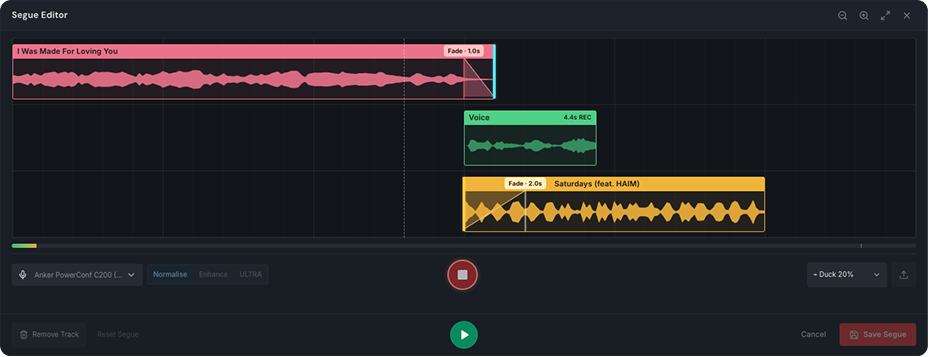
Your show flows seamlessly thanks to your smooth transitions, and the segue editor supports this. Segues are automatically generated between songs in your playlist. Check how it sounds and make adjustments to give it your unique stamp.
Voice Tracking
There's no need to fumble on the mic, Voice Tracking between tracks lets you add perfectly timed voice-overs that work with your music. Simply open the Segue Editor and click add track. Record your link, and then adjust as needed: set the music ducking level, trim any dead air, and control the overlap between the song playing out and the song coming in.
Cart Wall
Firing off your signature idents, sweepers, music beds and jingles is super easy with the 20-tile cart wall. Each tile can be loaded with audio and then set with a colour and playback rule. Letting you customise your cart-wall in a way that makes sense to you.

Auto-Save Session
When you have everything set up just right, you won't want to do this repeatedly for your live shows. That's why Playout auto-saves sessions, keeping cart assignments, loaded tracks and microphone preferences the same for your next session.
What Do You Need To Use Playout?
The beauty of Playout is it doesn’t involve you downloading and configuring any extra app or programme. Instead, it runs in your browser. So the only things you need to use Playout are:
- A Windows or Mac computer
- Google Chrome or Microsoft Edge browsers
- A Radio.co Standard, Plus or Premium Account
If you're on Radio.co Lite and want to use Playout (as well as other features like Voice Studio!), you can upgrade your account in the billing section of your Radio.co dashboard.
How Can I Started With Playout?
Here are the essential steps for getting started with Playout, but you can find the full guide here.
Step 1) Authorise Access To Your Radio.co Station
- Open Playout in your web browser and Continue with Radio.co
This will prompt you to Log in with your Radio.co credentials (Please note: Playout is only available for customers on Standard and above plans). - Click Accept to authorise Playout.co with your Radio.co station.
- If you have multiple stations, go to the Settings tab and select the correct station and click Switch Station.
Step 2) Get Familiar with Playout
Connect your mic: Click the settings cog next to the microphone, choose your mic or audio device, and monitor the level using the VU meter. Adjust the gain and duck level as necessary.

Build your running order: Search your Radio.co library to manually add media, or use Autofill to generate a playlist for you. Rearrange your track order, delete unwanted songs and add breaks for scheduled talkovers.
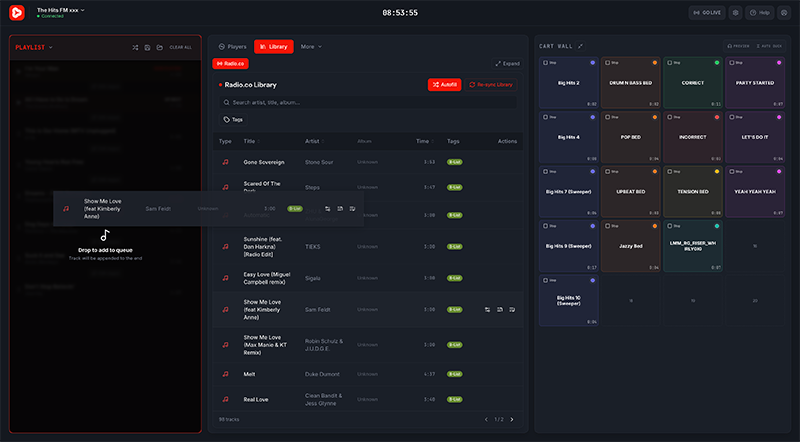
Load up your cart wall: Drag short audio clips, jingles, or station IDs from your Radio.co library onto any of the 20 cart tiles. Right-click a cart tile to assign a playback rule (Play/Stop, Play/Pause, Restart, or Loop) and set the tile colour.

Step 3) Go Live and Use Playout
Once you're familiar with Playout, go live and use it to craft your live radio shows.
- Click Go Live to start broadcasting live.
- Click the On Air button to stop broadcasting live.
How Does Playout Fit in With the Rest of Radio.co?
Playout is the missing piece of the puzzle for creating, live shows within your browser. Combined with our other automation, scheduling and production features, Radio.co provides an all-in-solution to manage and grow your radio station.
Previously, you may have connected another app to broadcast live. Perhaps even with a physical mixing desk connected to your computer. Playout simplifies this and for many broadcasters, gets rid of the need to use extra apps and a physical mixing desk. But if that's your preferred way of broadcasting, watch this space for audio routing developments and midi controls.
To put simply, Radio.co's other Studio features can continue to handle your automated station schedule. But Playout is designed for the moments when you want to take over and present a show live. For a deeper look at what Playout can and can't do, refer to this guide.

Want To Try Playout?
We know there's a real shortage of browser-based playout and live-assist tools for broadcasters. Especially if you're using Mac. If Playout is the solution you've been looking for or you're just curious you can try it for free for 14 days. Just be sure to select a Standard, Plus or Premium account to trial.
What Do You Think of Playout?
If you give Playout a whirl, we would love to know what you think and if we can make improvements. Let us know over on our feedback forum.


