Need advice? Let's talk.
Get straightforward guidance from your broadcasting partner. Schedule a call to chat with the team about your radio station.
Book DemoBest Radio Software for Windows
Broadcast using the best radio software for Windows with BUTT, the simple all-in-one solution for streaming shows live to your listeners.

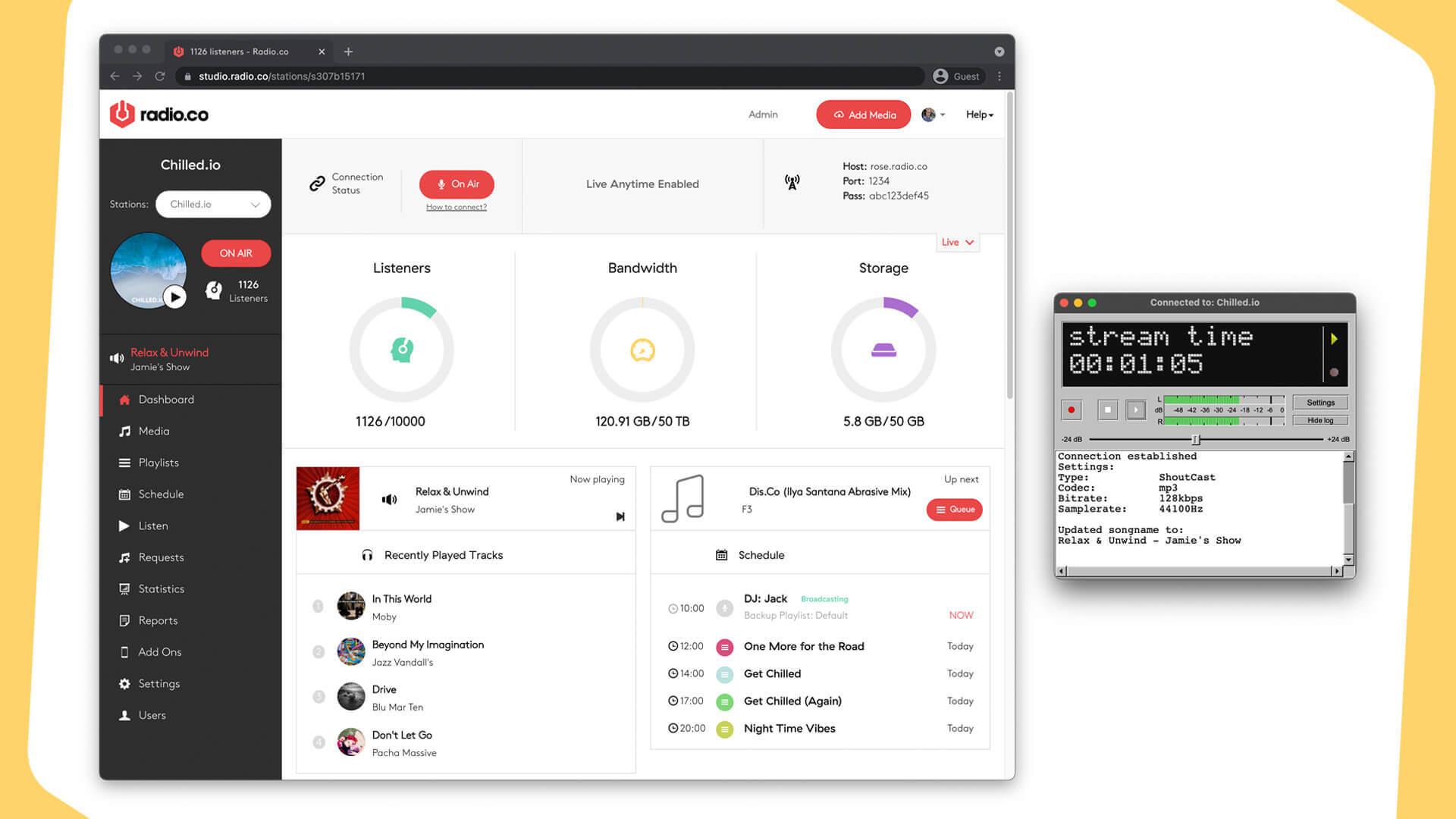
As a broadcaster, you want to the best tools for managing shows and reaching listeners. Nobody has time for confusing and technical software anymore. Sharing your station should be as simple as clicking a button, that's why we believe the BUTT (Broadcast Using This Tool) is the best radio software for Windows.
Simple and easy to use, connect and broadcast live in minutes without any technical mumbo-jumbo. Just copy your server details from your Radio.co account, connect your station, and reach your listeners.
What is BUTT?
BUTT is a free client broadcaster that works on Windows (as well as Mac and Linux). It's lightweight but robust radio software that takes your audio feed and pushes it out to your radio station. BUTT only handles live feeds like like from a microphone or a mixer, but you can route in audio from other apps using virtual cables.
Why BUTT is the Best Radio Software for Windows
Most broadcasting software these days have all the bells and whistles, but for newcomers it can be overwhelming and downright confusing. We believe the best radio software for Windows is one with minimal set up, a few clicks of a button, and everything just works. As BUTT has been designed with simplicity and ease of use in mind, it ticks all these boxes. As well as:
- Free: BUTT is completely free for you to download, setup, and use with your online radio station. But if you're able to, we recommend giving a donation to keep it open source.
- Minimal Setup: Simply select your audio feed (like a microphone) from the device dropdown, then copy and paste your server details (found in the Radio.co dashboard) into the BUTT app and you'll have connected your live stream with your station.
- Extra Settings if desired: If you want to do more with your broadcasting software, BUTT has some neat tools functions: you can set your streaming & recording quality, metadata and apply digital signal processing.
How to Setup BUTT
To get BUTT setup, first add your server (aka your radio station).
Within BUTT’s main window select ‘Settings’, choose ‘Add’ (under ‘Server’), and fill in your server details. Find these in your live DJ bar in the Radio.co dashboard.
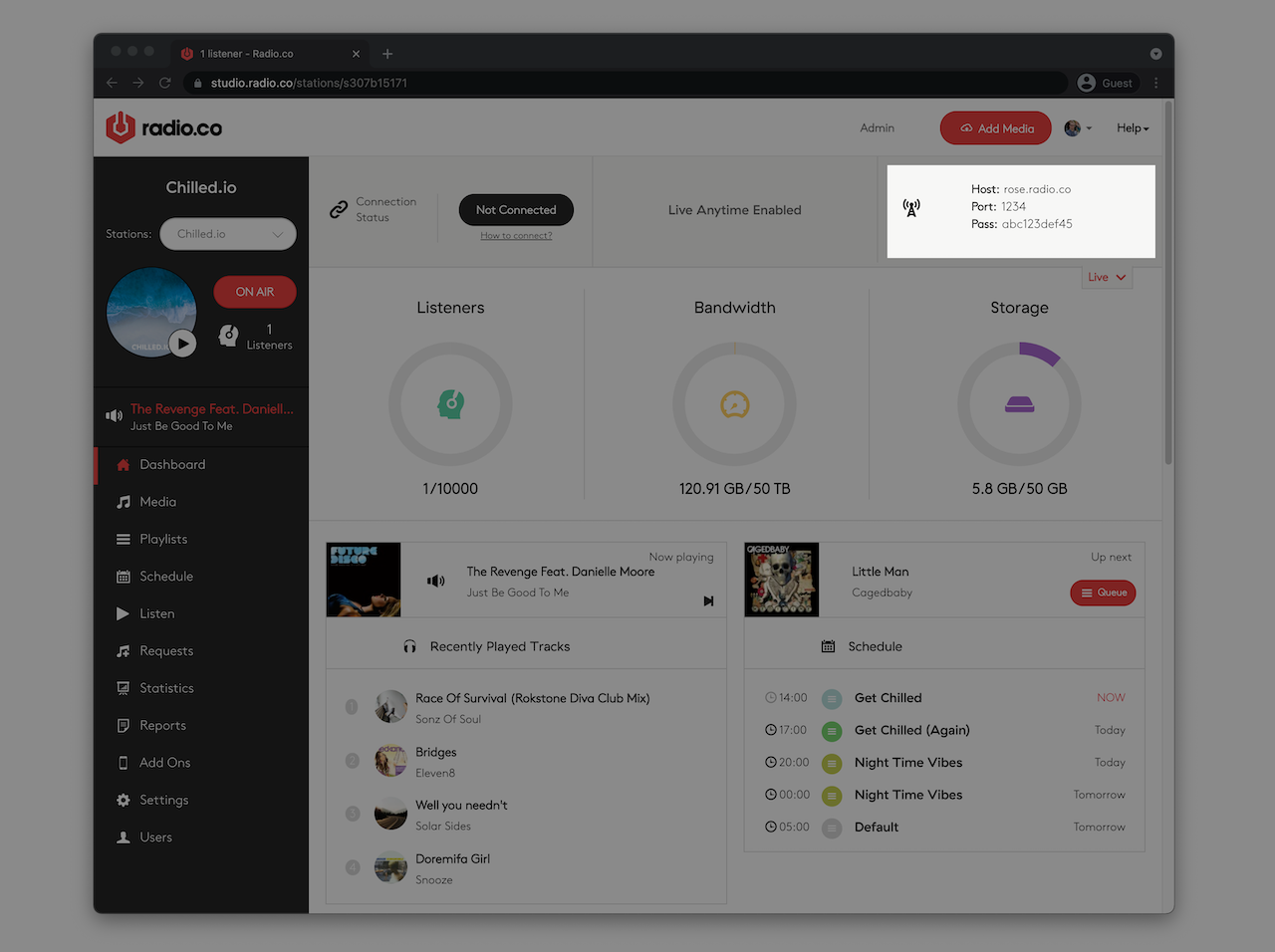
If you’re using Windows, select ‘Connection Details’ under the download button to view the DJ live streaming info.
- Name: Pet name used to identify the connection.
- Type: Choose ‘SHOUTcast’.
- Address: Transcoder name, e.g. rose.radio.co.
- Port: 4 digit number like ‘1234’.
- Password: Live DJ password, such as ‘abc123def45’.
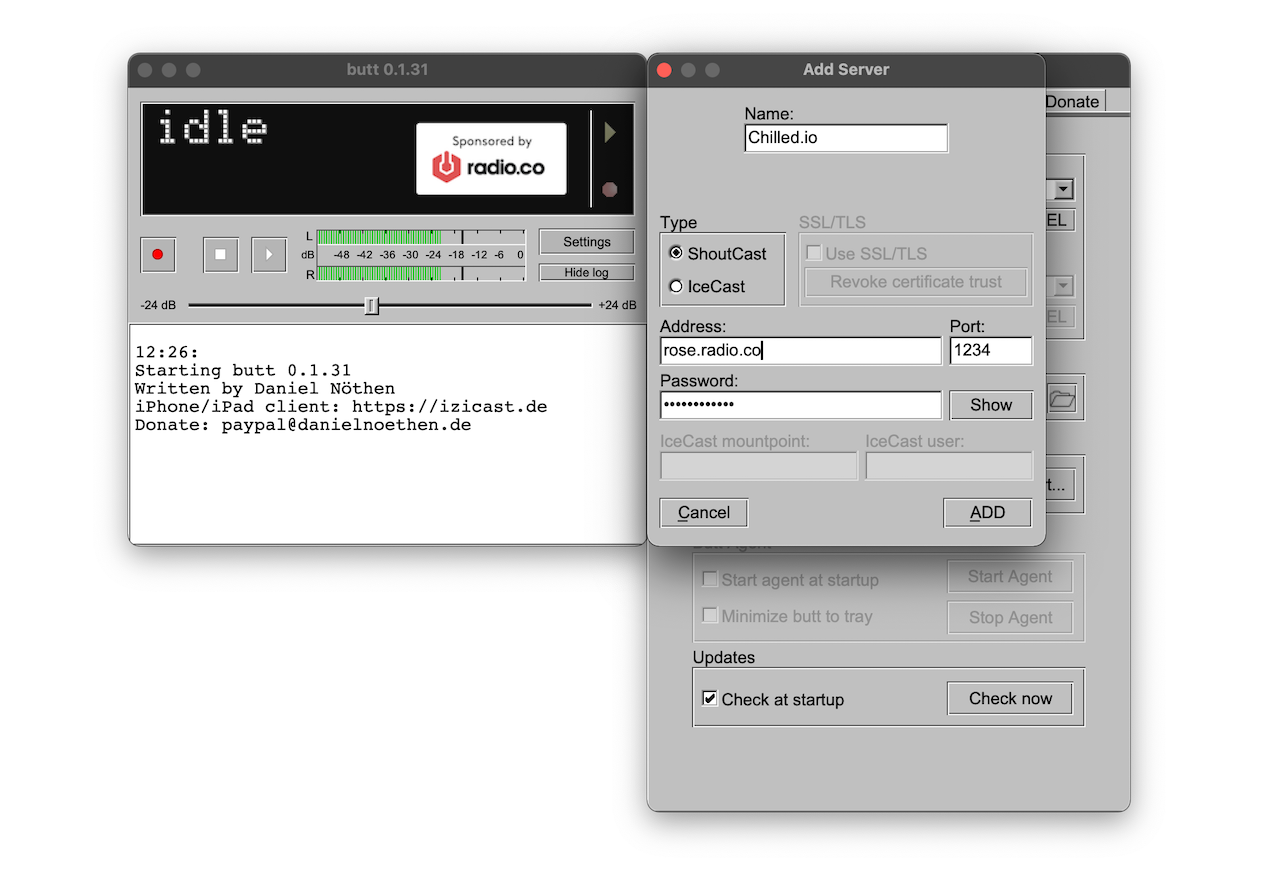
Then complete the setup by clicking ‘Add’.
Choose Your Audio Device
You've now successfully connected your radio station, all you need to do now is choose your audio device.
In BUTT's Main Window click the 'Settings' button and select the 'Audio' tab. From here, choose your audio device from the dropdown. For example, if you select a microphone, everything your mic is picking up will be pushed to your station once you go live.
Any it's as easy as that! You're now ready to go live with the BUTT.
If you come across any issues or just want to speak to us then we're also available for a quick chat. Either email us at studio@radio.co or talk to us live in the help centre (just hit the speech bubble in the bottom right corner).


