Need advice? Let's talk.
Get straightforward guidance from your broadcasting partner. Schedule a call to chat with the team about your radio station.
Book DemoRadio.co Live: The Browser-Based Streaming Tool for Live Broadcasting
Say goodbye to third-party apps, tricky configuration and extra costs. Radio.co’s new streaming tool, Radio.co Live, lets you broadcast live to your radio station in just a few clicks.


Looking for an easy way to broadcast live from your computer? Radio.co has the solution. Our new feature, Radio.co Live, means you can go live on your Radio station straight from your browser. Radio.co Live lets you connect an audio source such as a mixer, microphone or your computer audio and send this to your radio station in real time.
So if you want to learn the super simple way to broadcast live, keep reading. We’ll cover everything you need to know about Radio.co Live.
What is Radio.co Live?
- Radio.co Live is Radio.co’s new streaming tool. It lets broadcasters go live on their radio station with just a few clicks.
- It’s a browser-based audio encoder that works on desktop and mobile. (For optimum performance, we recommend using Google Chrome).
- It’s also available across all major operating systems.
Here is our founder, James Mulvany, walking you through it.
Why We Built Our Streaming Tool: Radio.co Live
Up until now, online broadcasters needed to use a third-party app to go live on their radio station. The problem was these apps were a bit fiddly to set up and often came as an extra cost. This inconvenience put off many broadcasters who needed a simple way to go live. Sadly, the industry accepted this as the status quo and didn’t come up with a solution.
We thought this was wrong. Broadcasting live should be easy. People with online radio stations should be able to go live without any headaches. So we created Radio.co Live, our streaming-tool to broadcast live from your browser to your radio station with just a few clicks.
Radio.co founder and CEO, James Mulvany, said:
“Broadcasters should be able to go live and stream from their computer, they should also be able to go play songs, station IDs and easily use their mic to talk over music. These three elements make up pretty much every radio show.
“We’re thrilled to create an easy way for broadcasters to do this. We hope Radio.co Live makes live broadcasting more accessible and adds new voices to the radio landscape.
How To Use Radio.co Live To Go Live On Your Radio Station
Using Radio.co Live to go live on your radio station is super simple.
- Open up your Radio.co dashboard (aka Studio).
- Ready to go live? Click the ‘Connect’ button.
- Sign in using your Radio.co account credentials.

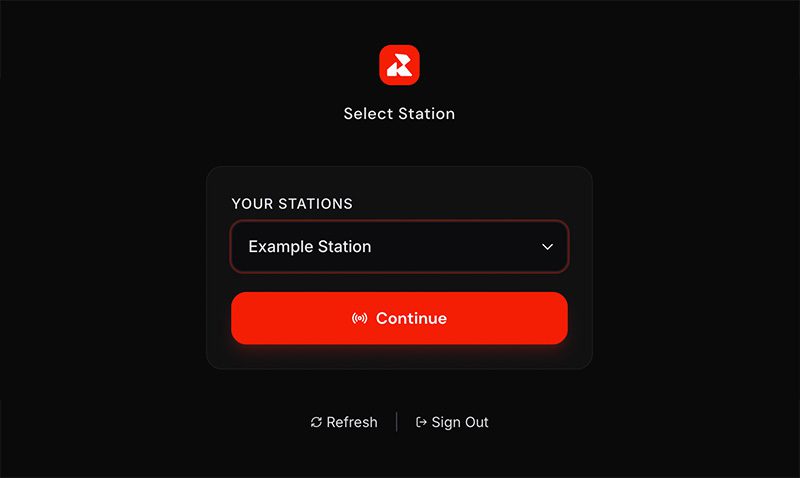
- Select your station (If you manage multiple stations, use the dropdown menu to select the correct one) then click "Continue".
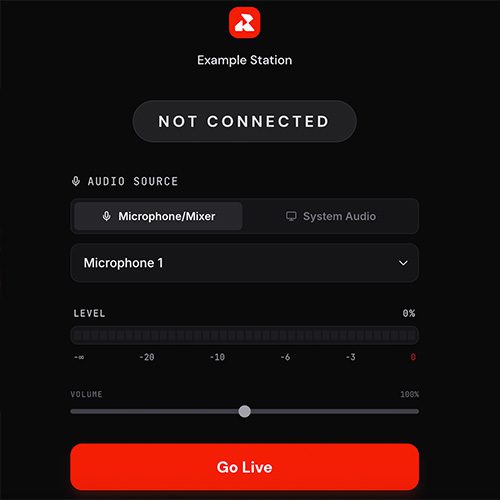
- Audio setup and go live:
- Select your Audio Source from the list.
- Monitor your levels to ensure you aren't clipping.
- Click "Go Live" to begin your live broadcast.
Pro Tips For Using Radio.co Live
- You can connect your live stream up to 5 minutes before your scheduled event window. Use this time to test your microphone and ensure your audio levels are perfect before going live.
- When using System Audio, remember that all sounds from your machine will be broadcast - including system alerts, email notifications, and browser pings. We recommend silencing your notifications before going live to keep your stream professional.
- Make sure your radio station is turned on, by checking your on-air status in the top right section of your Radio.co dashboard. If you see ‘off-air’ you can turn on your station by pressing the power button.
Frequently Asked Questions
Can I use Radio.co Live if I’m not with Radio.co?
Sadly not, Radio.co Live is a Radio.co feature so only available to our customers. Interested? Try Radio.co Live and our other features free for 14 days.
Can I mix together the audio sources on my computer?
Radio.co Live’s system audio setting can only broadcast your computer’s audio as a whole. So you’ll have to manually mute the audio from any apps you don’t want to broadcast. For greater control mixing audio from your apps, try VoiceMeeter for Windows or SoundDesk/Audio Hijack for Mac.
Can I broadcast live to multiple stations?
You can use Radio.co Live to broadcast to only one station at any one time. To broadcast to multiple stations, you’ll need to use our relay function. Follow this video to create relays for your other stations. Then follow this guide to create events for your other stations. Events ensure the relays happen at the same time as your live broadcast.
Why won’t Radio.co Live connect?
Radio.co Live can only work if your station is switched on. Make sure your radio station is turned on, by checking your on-air status in the top right section of your Radio.co dashboard. If you see ‘off-air’ you can turn on your station by pressing the power button. If that doesn’t resolve the issue, reach out to us at help@radio.co.
What audio can I stream live?
Radio.co Live supports all sorts of audio sources. You can connect: your computer’s in-built microphone; an external microphone connected to your device; an audio device; an audio mixer; your computer’s audio or a virtual audio cable.
What about licensing?
Radio.co Live is simply a tool to broadcast live and doesn’t include licensing. It’s your responsibility to ensure you have the correct licensing and permissions for anything you broadcast.
Conclusion
Thanks to Radio.co Live, broadcasting live to your radio station is now as easy as creating and managing one. If you want to give it a go, you can try Radio.co for free for 14 days.
Or do you want to see what else Radio.co can do for your station? From tools to create your own jingles to powerful audio processing, Radio.co provides all the tools you need for a polished, professional radio station. And you don’t need any broadcasting experience or technical expertise to use them. Book a call to see how we can help your radio station.


