Need advice? Let's talk.
Get straightforward guidance from your broadcasting partner. Schedule a call to chat with the team about your radio station.
Book DemoMixcloud Host Tagging: Grow Your Station's Listeners & Help Discoverability
Mixcloud's new host tagging feature helps radio stations & their hosts capitalise on each others networks. This guide dives into the feature and explains how to use it.

Collaboration allows your content to have a greater impact. Creative cross-overs drive engagement and expose audiences to new content and communities. They also immediately transfer credibility and trust from one collaborator to another and fuel cost-effective discovery.
The Radio.co x Mixcloud integration has been standing since 2018. It includes the Host Tagging feature: a powerful tool for radio collaboration. Let's take a look at what it is, the benefits it offers, and how you can use it with your station.
Key Takeaways
- What it is: A collaborative feature that publishes a radio show or DJ mix to both the station’s and host’s Mixcloud account simultaneously.
- The main benefit: It removes the need for duplicate uploads while organising all engagement metrics (listens, favourites, comments) in one shared analytics space.
- How it works: Simply invite a host or DJ to join the Mixcloud community and begin tagging them in relevant shows.
- What you need: To use via your own station dashboard, you just need your own Standard, Plus, or Premium Radio.co account along with a Mixcloud Pro account. It’s that easy!
What is Mixcloud?
Mixcloud is a streaming platform where users can listen to DJ mixes, radio shows, and podcasts. It is a very popular choice for online radio stations and is commonly used to share on-demand content.
Thanks to our integration, at Radio.co, our radio stations can publish their radio shows and mixes to the Mixcloud platform in just a few simple steps.

Since 2024, the Host Tagging Feature has been live for radio stations that also have a Mixcloud Pro account.
This guide covers what the Host Tagging feature is, who can use it, and how to publish your radio shows to Mixcloud using this feature.
What is the Mixcloud Host Tagging Feature?
Similar to a collaborative post on Instagram, the Host Tagging feature allows a show to be uploaded to multiple Mixcloud accounts at once. This means a radio station can upload a DJ mix, tag their host or DJ, and it will appear on both of their Mixcloud accounts.
All a radio station has to do is invite their hosts and DJs to join their Mixcloud community. Once connected, they can tag the relevant collaborators in the shows they upload and these will then show up on all selected profiles.
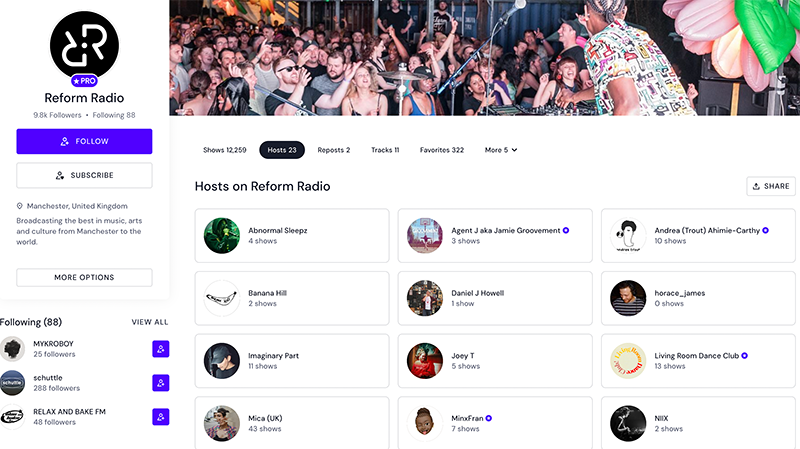
This feature creates a “Hosts” tab on your radio station's Mixcloud account, which removes the tedious task of creating manual playlists. It also boosts the discoverability of your content, as listeners can search your shows based on the DJs, producers, and radio hosts involved.
Reform Radio uses this feature, listing 23 connected hosts under the tab, as pictured above.
What are the Benefits of the Host Tagging Feature?
Mixcloud’s Host Tagging feature offers numerous benefits for radio stations, DJs, and radio hosts.
- Visibility: Radio shows, mixes, and podcasts are shared automatically to both the radio station and host’s followers. This improves radio show exposure, boosting the potential to reach more station listeners and more fans or followers for the host or DJ.
- Organisation: Host-tagged uploads are immediately organized into their own tab on the radio station’s Mixcloud account. This helps users find specific content and explore a radio station’s on-demand content by host.
- No Duplication: There’s no need for hosts or DJs to upload or repost shows on to their own profile. This feature does it for them.
- Grouped Analytics: All reposts, listens, likes, and comments from both the radio station and a DJ or host’s personal network are organised in the same place.
- Credibility: Hosts and DJs receive a badge on their Mixcloud profiles that shows their official affiliation with the radio station.
What You Need to Use the Mixcloud Host Tagging Feature
To use the Mixcloud Host Tagging Feature, you will need:
- A Standard, Plus or Premium Radio.co account if you want to upload your radio shows from the Radio.co dashboard
- A Mixcloud Pro account
How to Use the Mixcloud Host Tagging Feature
Step 1: Invite Your Radio Hosts and DJs to Your Mixcloud Account
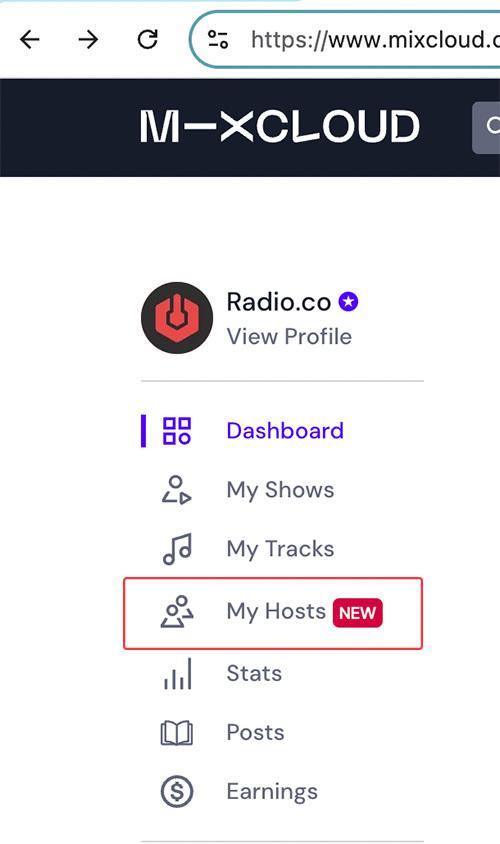
- When you log into your Mixcloud Pro Account, you will be directed to your dashboard. From here, click Hosts from the options on the left-hand side.
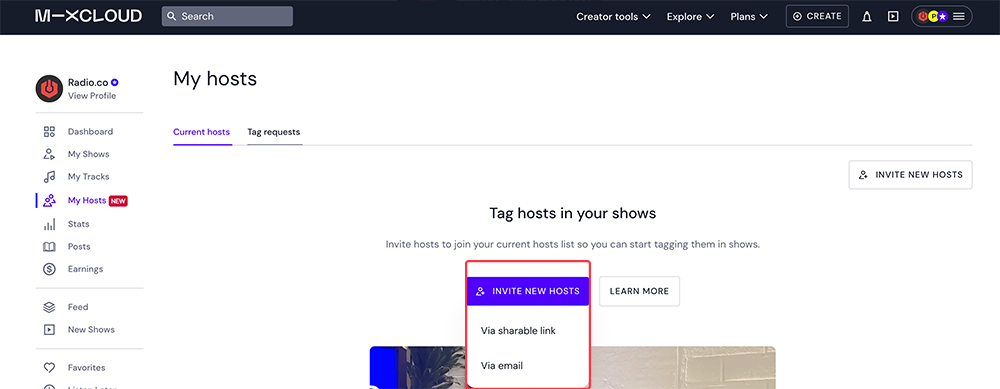
- Click the Invite New Hosts button and choose to invite them with a link or via their email address.
- Once they accept the invite, you can proceed to use your Radio.co and Mixcloud integration.
Step 2: Connect Your Mixcloud and Radio.co Accounts
- In your Radio.co Dashboard, head to Settings > Integrations and click the Connect Mixcloud Account button. This opens a new tab where you can log into your Mixcloud Pro account.
- Within the Mixcloud tab, click the Authorize button to grant Radio.co publisher access. Once done, you will be redirected back to your Radio.co dashboard.
Step 3: Publish a Radio Show or DJ Mix To Mixcloud & Tag Hosts
- To publish a DJ mix you have already uploaded to Radio.co, head to Media > Tracks within your Radio.co dashboard and locate it in the list.
- To publish a live recording made within Radio.co, head to Media > Recordings within your Radio.co dashboard and locate it in the list.
If you need to adjust the current track name and artwork before submitting to Mixcloud, you can do so by clicking Actions (...) > Track Editor.

Next, click the Actions (...) button once again, then Publish to Mixcloud.

- A pop-up will appear, where you can add up to two invited hosts to your upload. If you need to manage your hosts, this can be done in your Mixcloud Pro dashboard.
- You can also edit the track title, add up to five Mixcloud tags, and write a description for the radio show or mix that will show up on your Mixcloud page.

You can view the status of your uploads using the cloud icon next to your recordings. Here’s how to understand the various statuses:
🔴 Red: Waiting to upload
🟠 Orange: Upload processing
🟢 Green: Upload complete
- Once an upload is complete, head to Publish to Mixcloud within the Actions (...) menu again, where you will find a direct link to the mix.

- You can also reset the track in your media library. This is useful if you need to re-upload the track for any reason.
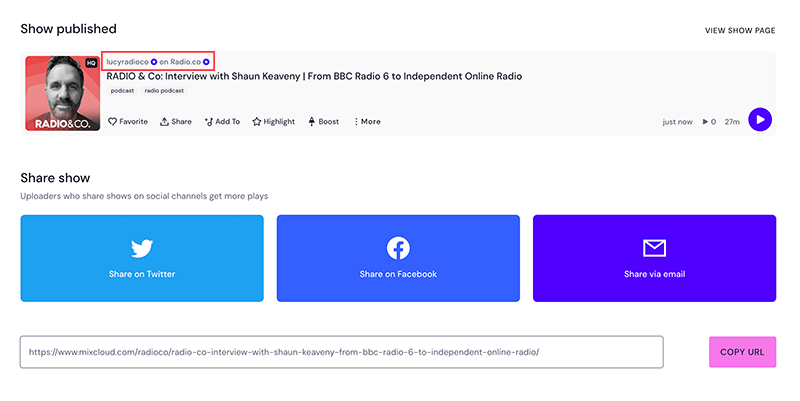
Once uploaded to Mixcloud, your show will have the host(s) listed above it, like this:
To Wrap Up
Mixcloud’s Host Tagging feature gives radio stations a powerful opportunity to increase listenership while making on-demand radio content easier to navigate. Radio stations, hosts, and DJs can mutually benefit from each other's networks, tapping into shared audiences, fanbases, and communities. For Radio.co users, it is an efficient and effective way to boost brand discoverability, create a more user friendly station hub, and streamline your post-show workflow.
Ready to take advantage of the Radio.co x Mixcloud integration? Start your free trial and join the Radio.co family today.


