Need advice? Let's talk.
Get straightforward guidance from your broadcasting partner. Schedule a call to chat with the team about your radio station.
Book DemoHow to Create a Live 24/7 Radio Station
Engage with listeners around the clock with a live 24/7 radio station, but without actually broadcasting live.

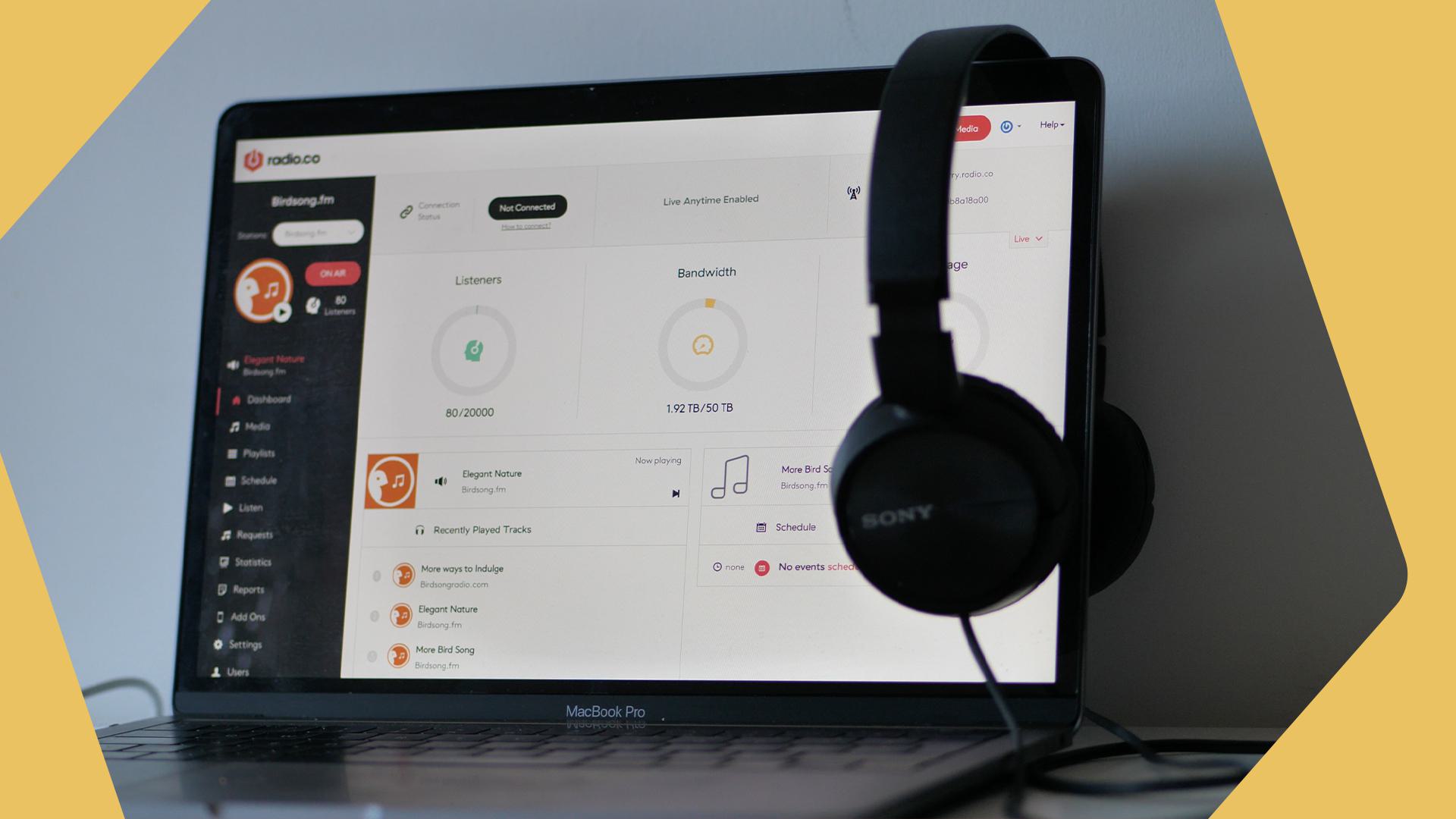
Consistency is key for any internet radio station growing an audience. You want to provide the experience of a live 24/7 radio station, whether you’re actually broadcasting live or not. Nothing is going to kill audience interest faster than if they tune in and your station is off-air.
Thankfully, Radio.co provides all the tools so you can create a live 24/7 radio station, without actually being live.
Key Takeaways
- The goal: Go live when you want and use Radio.co’s automation features when you can’t. This creates the impression of a live, always-on station using playlists, tags, and voice tracking, even when nobody's actually broadcasting live.
- How it works: Build playlists and tag your media library so tracks cycle without repetition, then layer in pre-recorded voice tracks to add a human presence between songs.
- Adding news coverage: Top of the hour news (available on higher-tier plans) adds another layer of "live" feeling without needing a presenter on standby.
- Handing off control: DJ user roles let other presenters take over specific time slots without ever breaking the 24/7 stream.
How To Actually Broadcast Live
We’ll get into how to create the impression of broadcasting live, even when you’re miles away from your computer or busy with other things. But given going live is the most fun you can have as a broadcaster, let’s see how you do this first.
Radio.co has two ways to broadcast live, without having to download any software.
Option 1 - Radio.co Live
The first, available on all plans, is its aptly-named Radio.co Live feature. Radio.co Live is Radio.co’s browser-based streaming tool. It lets broadcasters go live on their radio station with just a few clicks - all from their browser and without using an extra bit of software. If you want to be techy, it’s essentially a browser-based audio encoder that works on desktop and mobile.
Here's our CEO and Founder, James Mulvany, walking you through it:
Option 2 - Playout
The second way is to use Radio.co’s Playout feature. Playout is our browser-based live-assist tool, which gives you all the essential controls to create super slick, live radio shows.
Playout lets you build and rearrange your running order, fire off jingles and edit segues all while broadcasting live. It has a 2 deck view, so you can see what’s currently playing and what’s next. As well as a microphone input with a realtime VU meter and automatic music ducking when you’re talking. You can find the full guide here, but below are the essential steps for using Playout.
Step 1) Authorise Access To Your Radio.co Station
- Open Playout in your web browser and Continue with Radio.co
This will prompt you to Log in with your Radio.co credentials (Please note: Playout is only available for customers on Standard and above plans). - Click Accept to authorise Playout.co with your Radio.co station.
- If you have multiple stations, go to the Settings tab and select the correct station and click Switch Station.
Step 2) Get Familiar with Playout
Connect your mic: Click the settings cog next to the microphone, choose your mic or audio device, and monitor the level using the VU meter. Adjust the gain and duck level as necessary.

Build your running order: Search your Radio.co library to manually add media, or use Autofill to generate a playlist for you. Rearrange your track order, delete unwanted songs and add breaks for scheduled talkovers.

Load up your cart wall: Drag short audio clips, jingles, or station IDs from your Radio.co library onto any of the 20 cart tiles. Right-click a cart tile to assign a playback rule (Play/Stop, Play/Pause, Restart, or Loop) and set the tile colour.

Step 3) Go Live and Use Playout
Once you're familiar with Playout, go live and use it to craft your live radio shows.
- Click Go Live to start broadcasting live.
- Click the On Air button to stop broadcasting live.
How To Automate Your Radio Station So It Seems To Be Live
Create Unique Playlists
When creating your live 24/7 radio station, you should start by creating playlists. The wonderful thing about playlists is that they allow you to broadcast music without a DJ, and when combined with some of our other features, can be used to create the illusion of a live broadcast being streamed directly to your listeners.
Creating a playlist is as simple as going onto your Radio.co dashboard, heading to the ‘Playlists’ section and adding a new playlist, which you can then fill with songs or tags. You can customise the colour of your playlists to differentiate them, but this will only be seen by you, so it’s only for your reference. You can choose the name of your playlists, and this can be seen by listeners if you set the metadata to be ‘displayed on the event’. Playlists also display their duration, so if you have an evening show that needs to fill up an hour time slot, you can specifically fashion a playlist to meet that criteria.
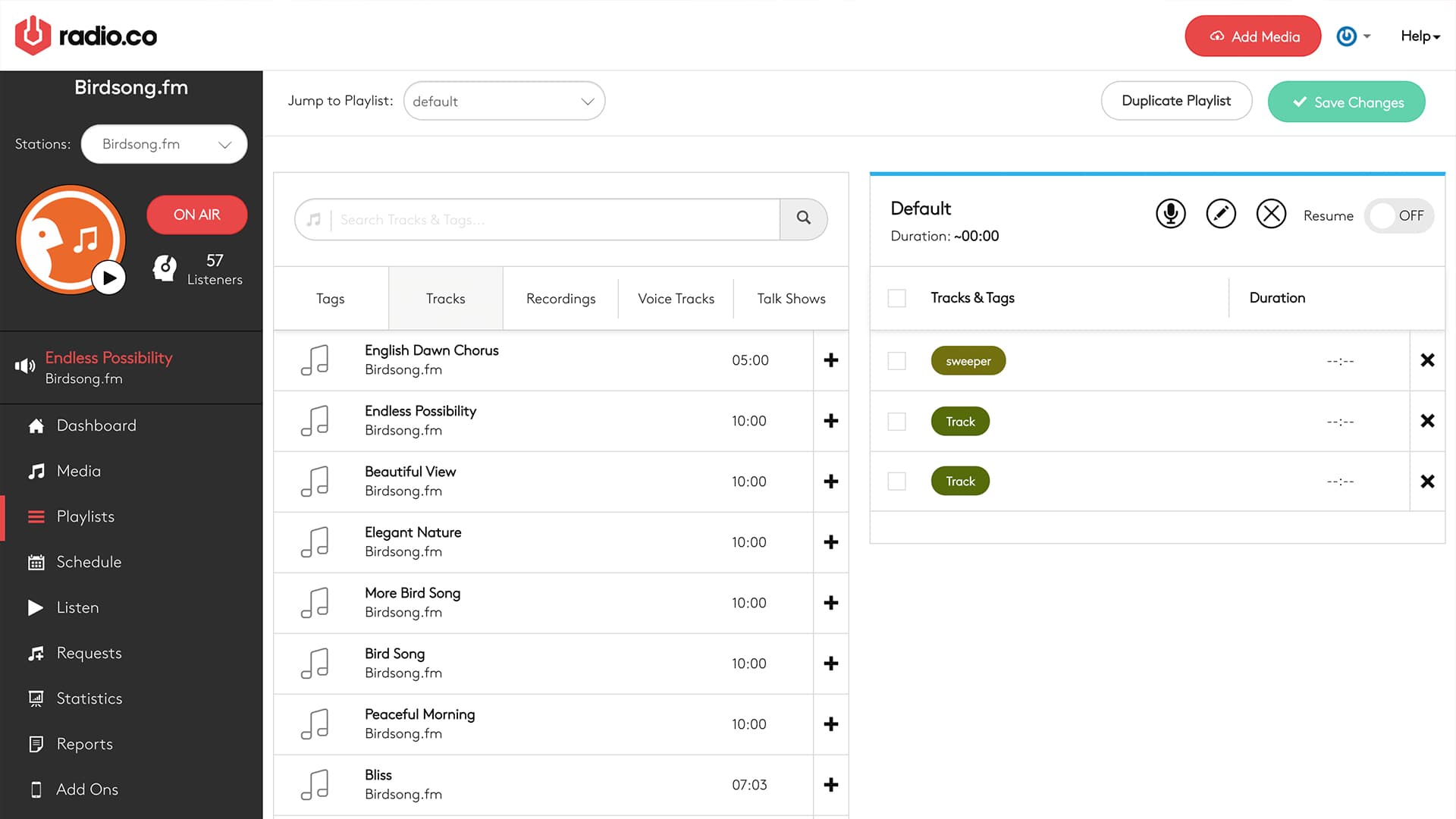
Once you’ve created a playlist, it’s as simple as dropping it into your schedule at the desired time slot. Hey presto! You’re one step closer to a live 24/7 radio station.
Diversify Your Playlists with Tags
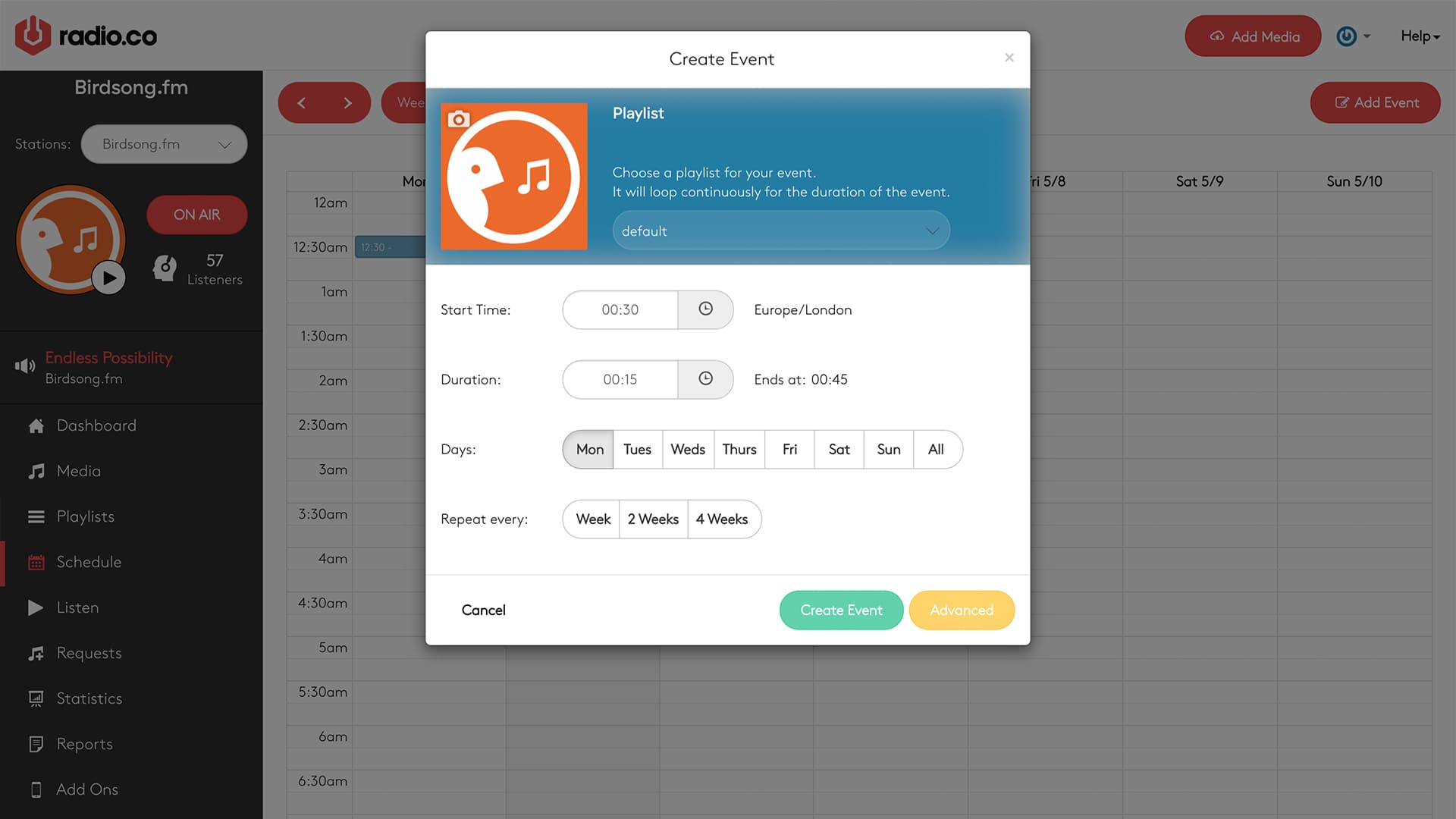
Tags help you to create a truly live 24/7 radio station experience, enabling you to add variety to the songs you play, so your shows don’t all end up being repeats of one another.
When accessing your media library, if you select any track you can enter a tag in the top right box by either typing in a new tag or selecting a tag you’ve already created. After this, when creating playlists, rather than manually choosing songs you want in them, you can instead place tags. What this does is randomly picks any track you have listed under that tag and plays it, only repeating songs after all other tracks under that tag have been played. With this, you can randomise your music library for every playlist without having to go through and do it all yourself.
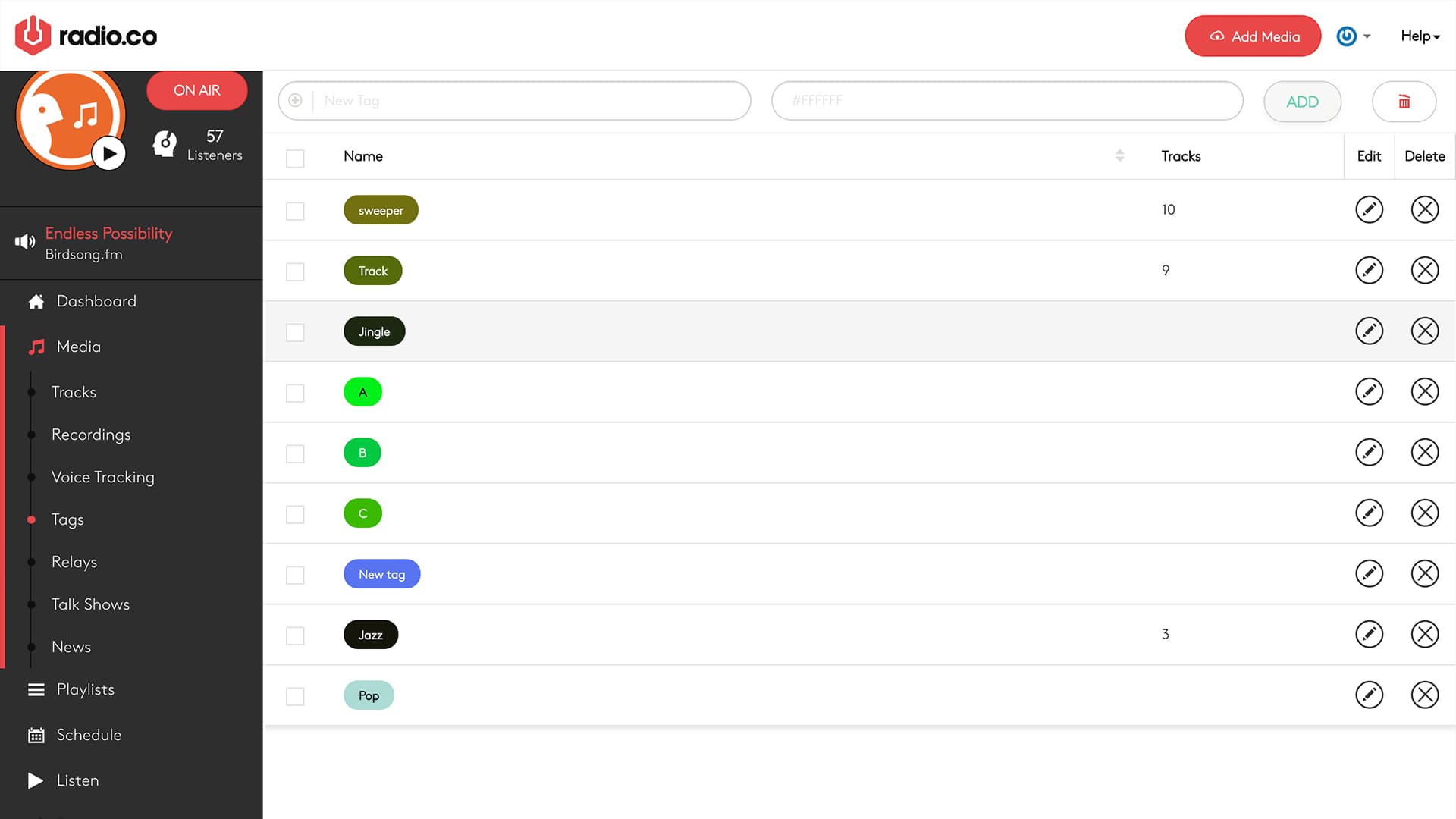
Place the tags in the order you want and when it gets to the bottom of the playlist it will cycle back through them, selecting random tracks for each. Tags can be applied to all tracks in your media library, not just songs, so use it to spice up your jingles, links and more!
Record Yourself with Voice Tracking
So you’ve got your playlists set up, but that’s not all you need for a live 24/7 radio station experience. You’ve probably figured out what’s missing. Growing an audience isn’t as simple as featuring a series of randomised playlists and calling it a day. People need a human element to get invested in your station.
With our voice tracking feature you can pre-record links for your broadcasts that you can place anywhere in your playlists.

All you need to do is go into one of your playlists that you want to record a voice track in and click on the microphone. If this is your first time recording a voice track you will need to allow Radio.co to access your microphone in the notification that appears. Voice tracks have a limit of 10 minutes so you will need to finish recording before then if you don’t want your links cutting off awkwardly. After you’ve recorded it, simply enter the metadata, save it and it will automatically go into your playlist, as well as your media library, under ‘voice tracking’.
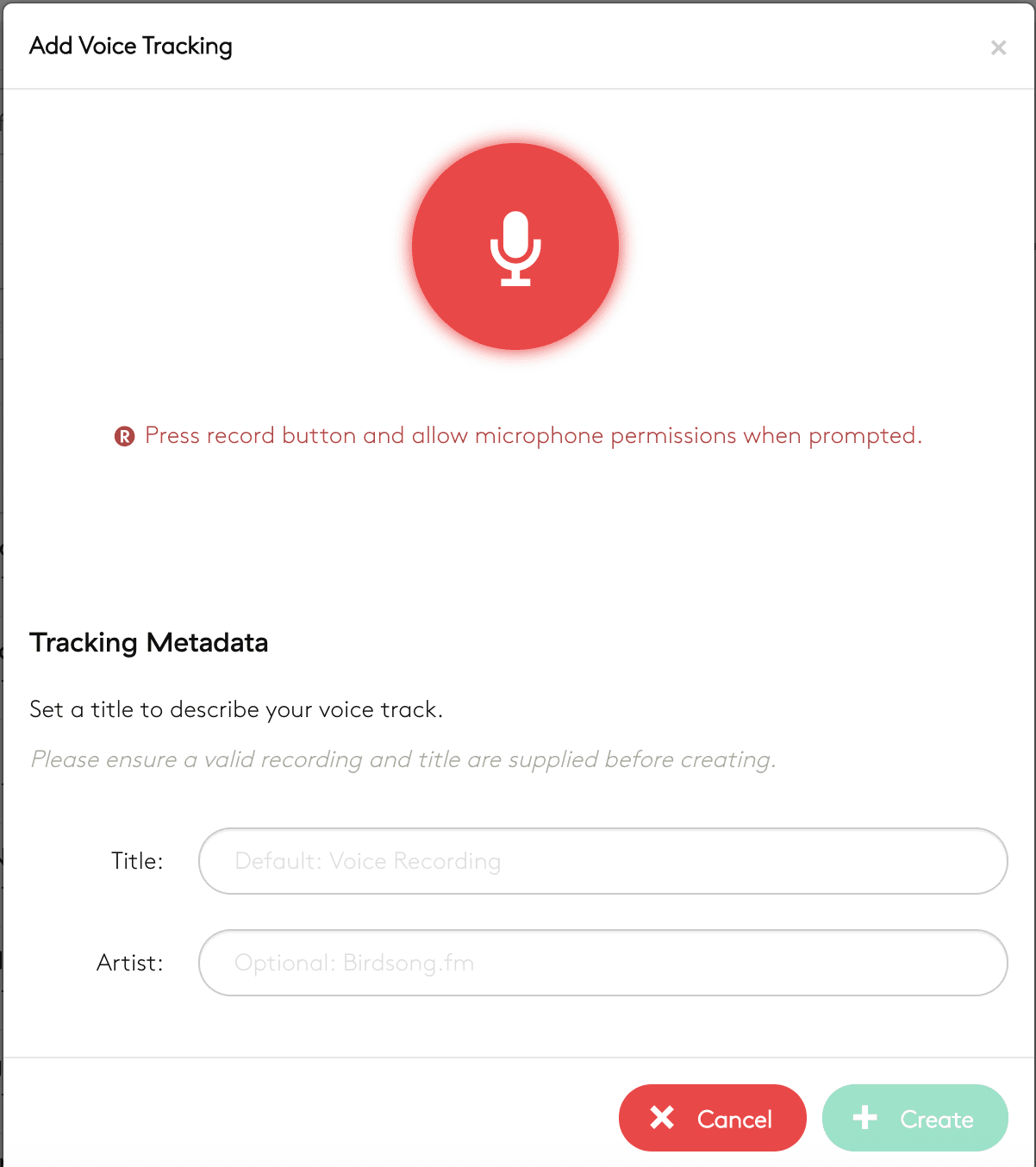
Putting these features together is the key to presenting a true live 24/7 radio station experience for your listeners. If you’re worried about having to record specific voice tracks for every show, we have a solution for when you’re not available! Thanks to combining voice tracking with tags, if you record a series of non-specific, general voice tracks - saying “hope you’re all enjoying the show”, or something like that - you can then tag them all as ‘voice track’ in your media library, or whatever works best for you. You can then add the ‘voice track’ tag into your playlists so that it will randomly cycle through them, just like with songs and jingles.
Cover Breaking News on the Hour, Every Hour
If you have a Plus or Premium plan with us, you can go one step further in creating a live 24/7 radio station experience by having top of the hour news coverage to keep your listeners informed about what’s going on. Including news coverage really helps give your station the impression of a live broadcast and means that even when you’re not available, your listeners will be able to keep up with global events.
Setting up your news feed couldn’t be simpler with Radio.co, we have loads of features so you can customise your news coverage to your liking. First, go to your Radio.co account and access News through the Media section of your dashboard. From here, you can set up the intro and outro that will bookend your bulletin, we recommend a jingle that includes your station name and announces the start of the news.
Next, you’ll need to have a news source available, as Radio.co doesn’t provide news sources. We recommend using services like Feature Story News (Subscription Service) to find something. You will need to have permission before using the source, but once that’s confirmed, just drop the URL in, choose your background music and choose whether your news will go out hourly or daily. Once that’s all done, you’re ready to start broadcasting top of the hour news in your broadcasts!
Hand Over the Reins with DJ Takeovers
If you run a station on Radio.co you may already be familiar with working with other DJ’s who have their own shows on your station. With our DJ automation you can have your DJ’s takeover your station for when you’re not available, so you never have to break that 24/7 stream of content.
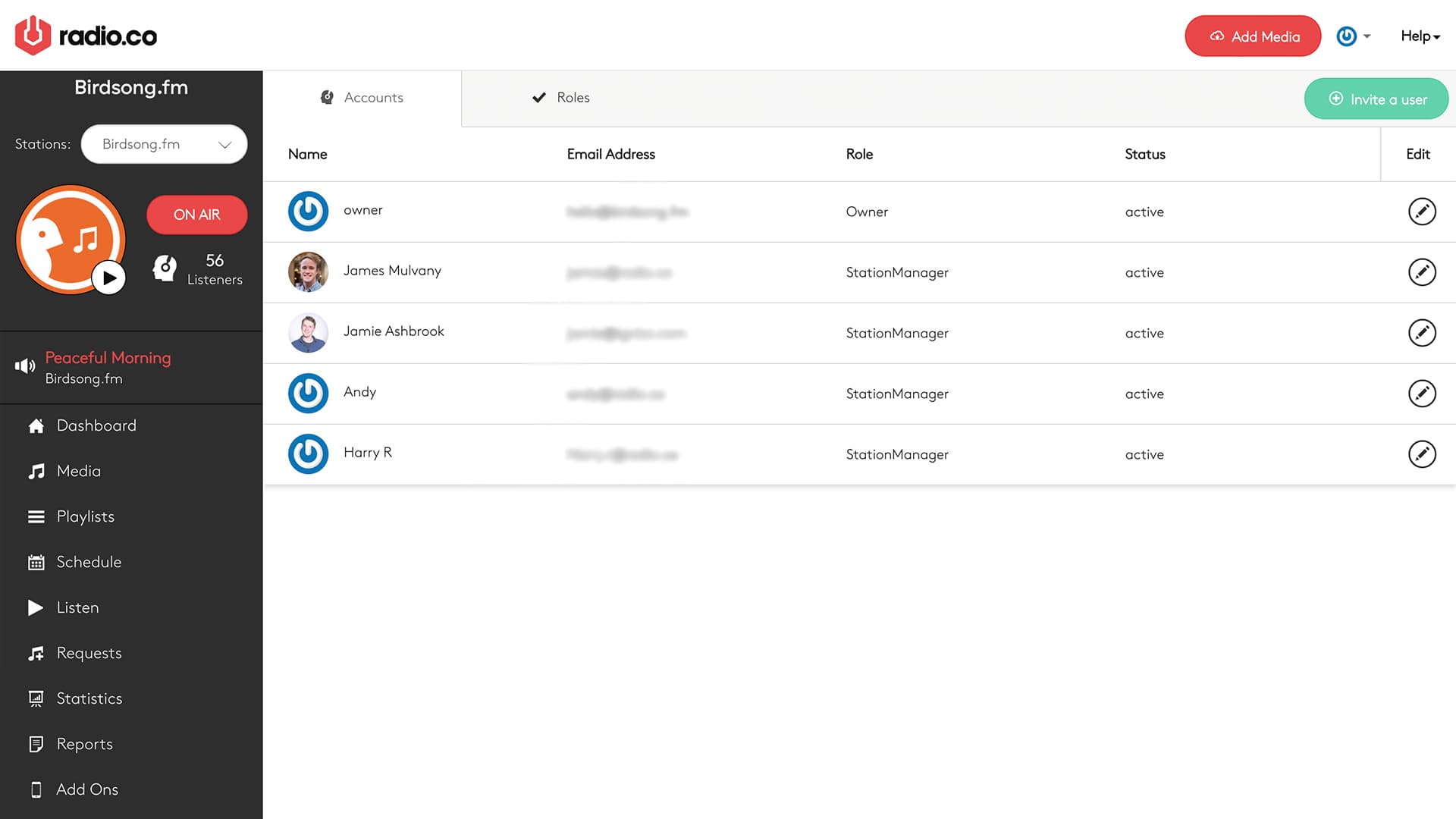
In your dashboard, go to the Users tab and you can Invite a User to be a part of your station. There are multiple rolls, including Station Manager, Music Controller, DJ and Guest DJ, all of which have different responsibilities and levels of access to your account, so a Guest DJ won’t be able to access your Billing tab and change your account plan, for instance. Selecting a Live DJ when scheduling broadcasts will allow that DJ to broadcast only within the slot you allot to them, so they can’t interrupt your broadcasts by going live at the same time. All of these features allow your station to run smoothly if you’re not there, so you never have to stop broadcasting.
Create Your Own Live 24/7 Radio Station
Once you have put all these together, you have everything you need to present a live 24/7 radio station experience, even if you’re not live. Whether you’re too busy, unavailable or having DJ issues, Radio.co gives you all the tools that you need to keep entertaining, no matter what.
Interested in turning your station into a 24 hour powerhouse? Join Radio.co and start broadcasting today with a 14-day free trial.


